
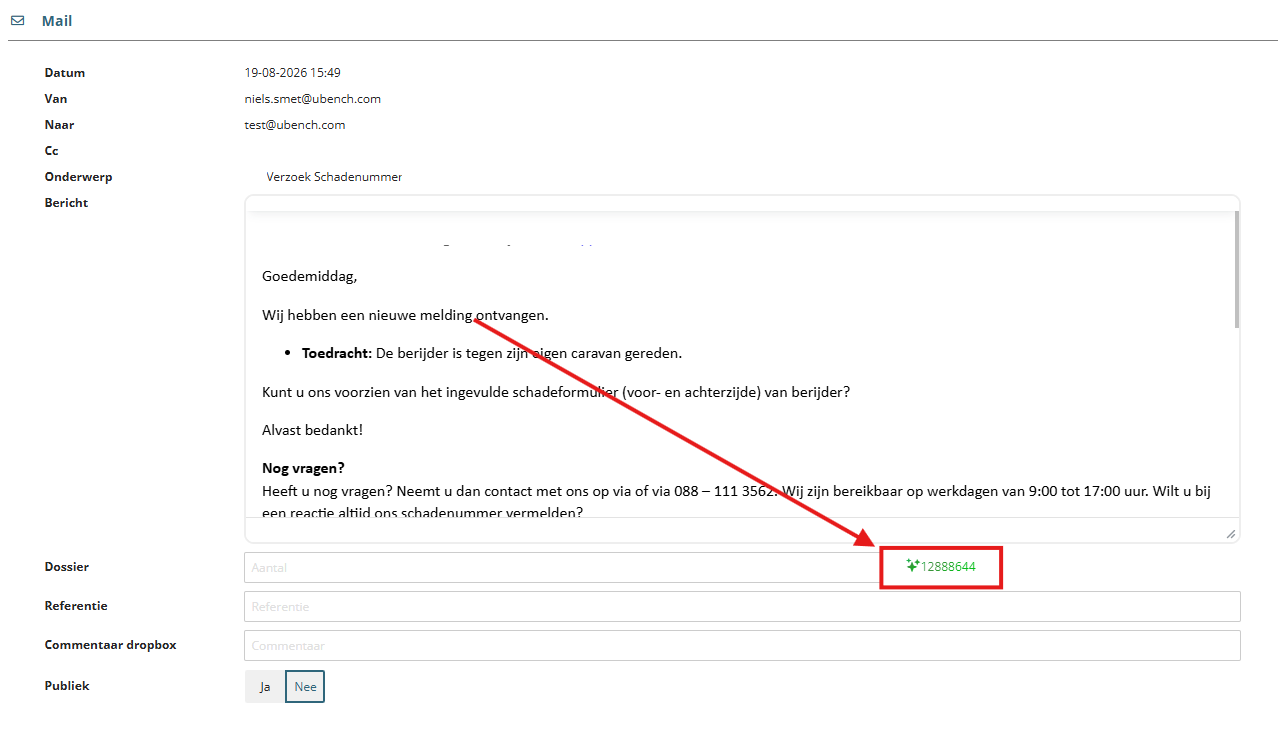
How to use a suggestion
1. Review
Check the suggested dossier number against the email content.
2. Select
Click a suggested dossier number. It will be filled into the Dossier field.
3. Save
Verify the dossier number and click Save to link the email to that dossier.
Important: Clicking a suggestion only fills the Dossier field. Nothing is linked until you click Save.
What do the colors mean?
Green — One dossier suggested
One possible dossier was found. Review the number and click it to fill the Dossier field, then click Save.
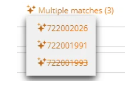
Orange — Multiple dossiers suggested
More than one possible dossier was found. Review the subject, message body and attachments, then click the correct dossier number. Verify the selected number in the Dossier field and click Save. If none of the suggestions is correct, search for the dossier manually or create a new dossier if needed.
Red — No dossier suggested
No suitable dossier could be suggested. The red message explains why, so you know what information to check before continuing manually.

Possible reasons include:
• License plate is required.
• The contract is not active at the given date of accident.
• More than one contract was found.
• Date of accident is required.
• Name is required.
• Zip code or city is required.
• Phone number or mobile number is required.
• Email is required.
• Date of accident cannot be in the future.
• Automatic claim request creation is not active.
When the missing information is available, provide it and search for the dossier manually.
Good to know
- Dossier Suggestion proposes a dossier; it never links one automatically.
- It applies only to Dropbox items that were not already linked through the subject-line check.
- Always review the dossier number before clicking Save.
Remember: Review the suggestion → select the dossier → click Save.